Description
The Asset management section has been reworked with a folder-based system, allowing users to organize and manage assets shared among all application users.
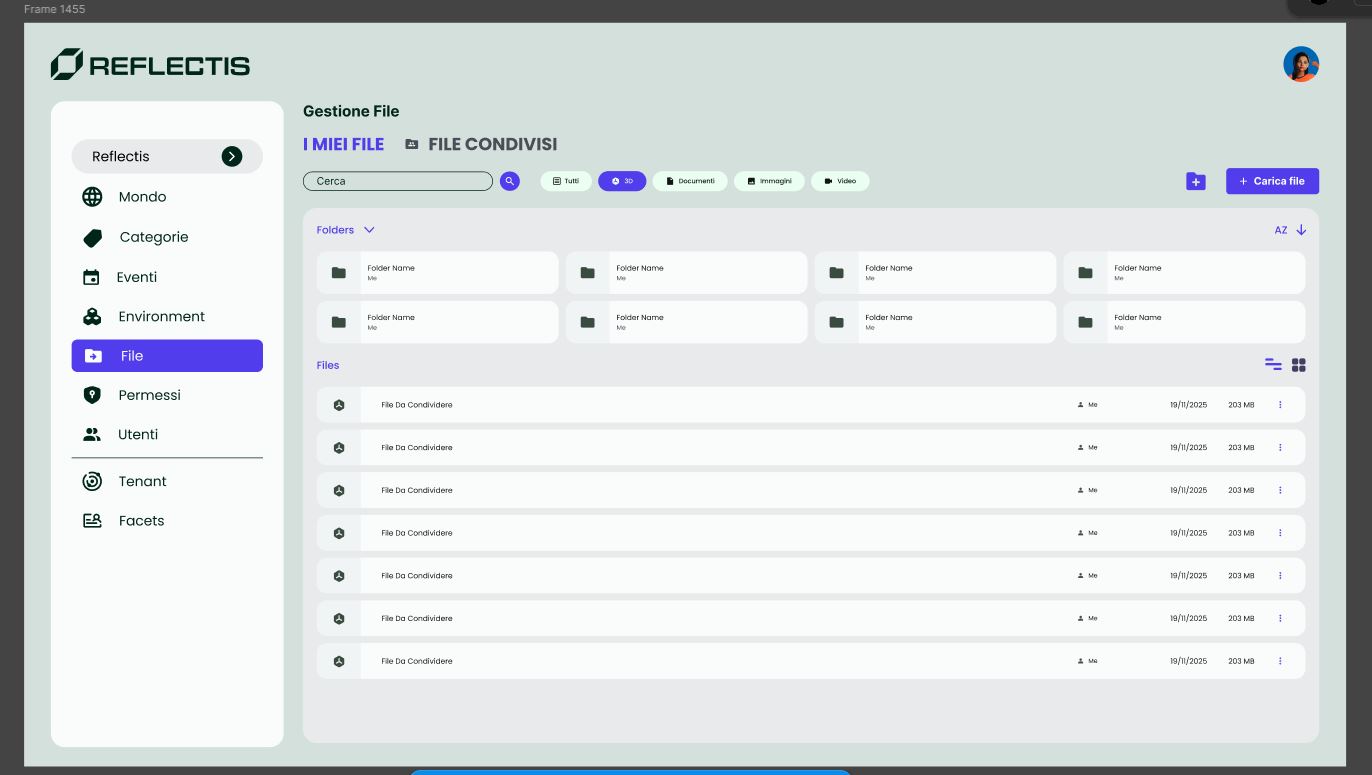
Tab Navigation
The page has two tabs:
| Tab | Description |
|---|---|
| My files (Private Files) | Assets uploaded by you, visible only to you. |
| Shared Files (Public Files) | Assets shared with all users in the World. |
Folders
Files can be organized into folders. Folders support a name that can be edited after creation.
To create a folder:
- Click the + New Folder button at the top-right of the page.
- Enter a name for the new folder.
- Click Save to create the folder.

Drag & Drop
Files and folders can be moved by dragging them into the target folder.
Bulk Upload
A new upload dialog allows uploading multiple files at once. It includes:
- 3D-specific settings for model assets (contextual menu parameters)
- The option to create a new folder during the upload
Multi-Select
Multiple assets can be selected via checkboxes. A bulk action bar appears at the top to apply actions to the entire selection:
- Delete
- Share (Make Public)
- Move
- Download
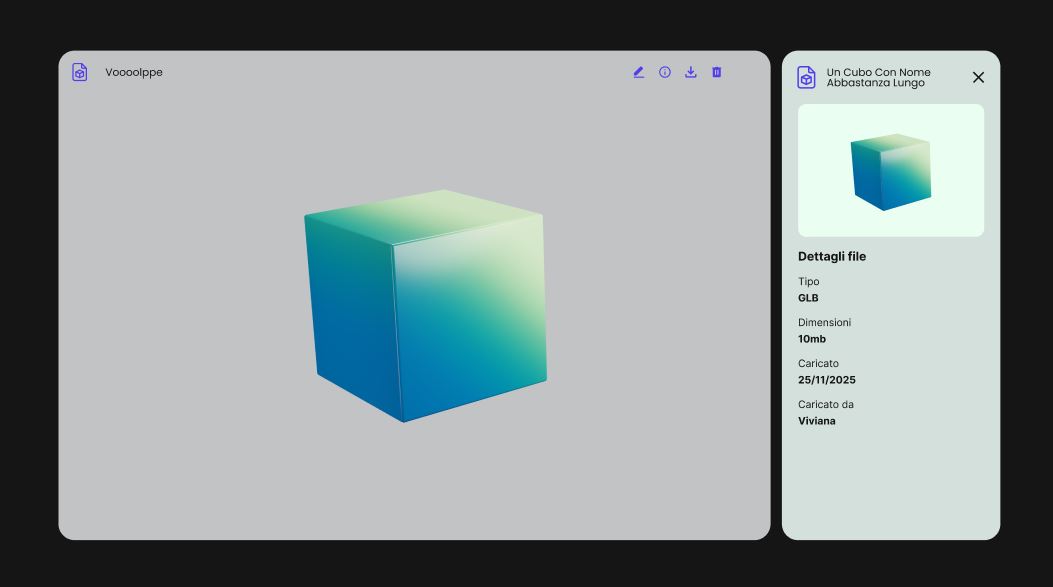
Asset Detail Panel
Clicking an asset opens a side panel showing its metadata. From there it can be edited inline.
Sharing
Asset sharing works with the folder structure:
- It's possible to share a folder with all its content.
- It's possible to share a single asset in the root.
- It is not possible to share a single asset inside a folder — you must share the entire folder.
The view updates dynamically after sharing or unsharing.
Thumbnails Generation
A thumbnail is automatically generated each time a file is uploaded.
Organizing and Managing Assets
- Organize by Category: Use the tabs (Images, Documents, Video, 3D) at the top to filter and view assets by type.
- Sort and Search: Assets can be sorted by Name, Upload Date, Size, or Owner. The search bar allows you to quickly locate specific assets.
- Actions: Each asset has icons for downloading, viewing details, deleting and editing. Only users with appropriate permissions can delete assets.
Viewing Assets
- Users can switch between the default List View and a Card View, allowing a more visual and intuitive browsing experience.
- Clicking on an asset's row or card opens the detail panel, allowing users to quickly view and edit the asset.