Categories
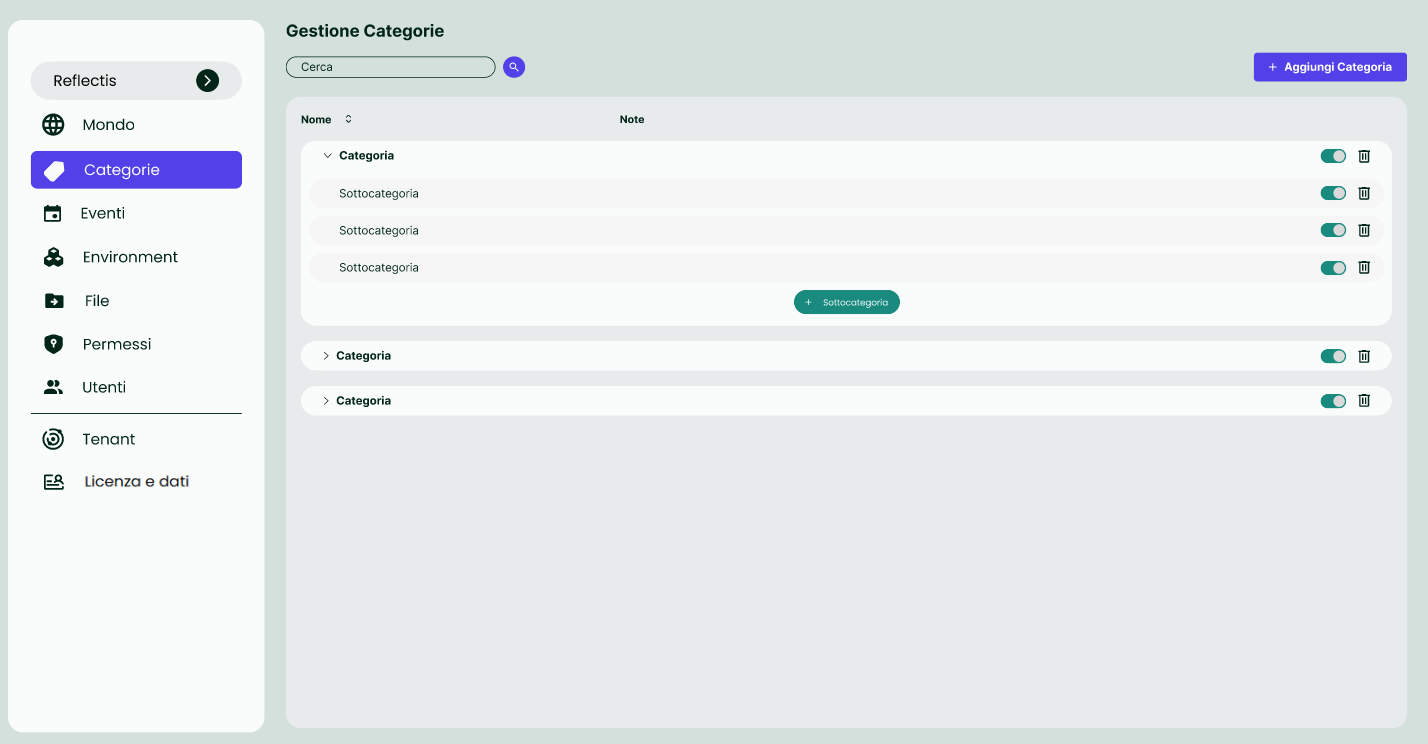
The "Categories" section allows users to create and organize categories and subcategories for classifying events effectively. This organization provides a more structured and intuitive way to manage events within easily recognizable groupings.
Overview
In this section, users can:
- Create Categories: Add new categories that will be available when selecting a category for events.
- Manage Subcategories: Organize events more precisely by creating subcategories under each main category.
- Toggle Visibility: Use the toggle switch to enable or disable categories and subcategories as needed.
- Delete Items: Remove categories or subcategories using the "Trash Can" icon.
Creating a Category
To create a new category, click the "Add Category" button at the top right corner of the screen. This action will open a form window, where you can specify the details for the new category. Once saved, the new category will appear in the list in the center of the page.
Managing Subcategories
- Click on a category to expand it and view the list of subcategories.
- To add a subcategory, click the green "+ Subcategory" button. A new subcategory entry will be added under the selected category.
- You can toggle the visibility of categories and subcategories using the switches on the right.
- To delete a category or subcategory, click the "Trash Can" icon next to the item you want to remove.
This structured approach to event classification helps maintain a clear and organized event management system.